
 Mihonator
Get the right URL
Copy the Mihomo or Clash Meta subscription URL from your provider. It should return a YAML profile with the proxy groups and routing configuration supplied by that service.
https://provider.example/subscription/YOUR_TOKENThe token identifies your subscription. Keep the complete URL private. The current build imports through a URL form; QR scanning and mihonator:// links are not part of this flow.
Add a profile
- Open the profile screen and press +.
- In Name, enter a recognizable profile name.
- Paste the complete subscription URL into Subscription URL.
- Press Save and wait for the download to finish.
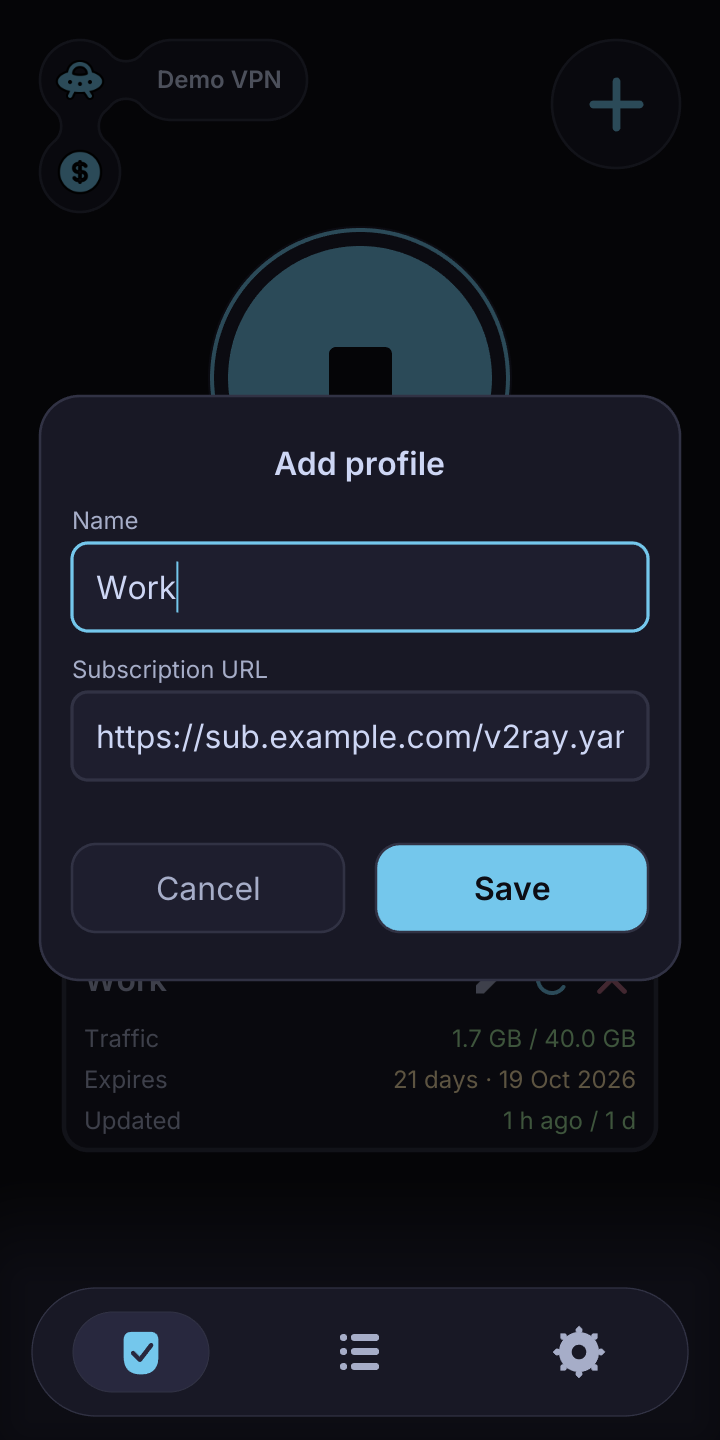
If the form reports an error, check the URL and the status of your plan. The import troubleshooting guide covers common causes.
Keep the profile up to date
Use the refresh control on a subscription profile to download its latest configuration. The Updated row shows when the profile was last saved.
A provider can send profile-update-interval to request periodic updates in hours. The profile screen checks elapsed intervals while it is active. Do not rely on this as a background scheduler when the app is closed.
Manage profiles
Select the profile you want to use before connecting. The pencil control edits its name and URL; the remove control deletes it from the client. Removing a profile does not cancel a subscription with your provider.
Quota and expiry appear when the provider includes subscription-userinfo. An empty quota field does not by itself mean the import failed.